- Published on
Typora for macOS Review: The Markdown Editor That Stays Out of Your Way
6 min read
- Authors
- Name
- Kiarash Soleimanzadeh
- https://go.kiarashs.ir/twitter


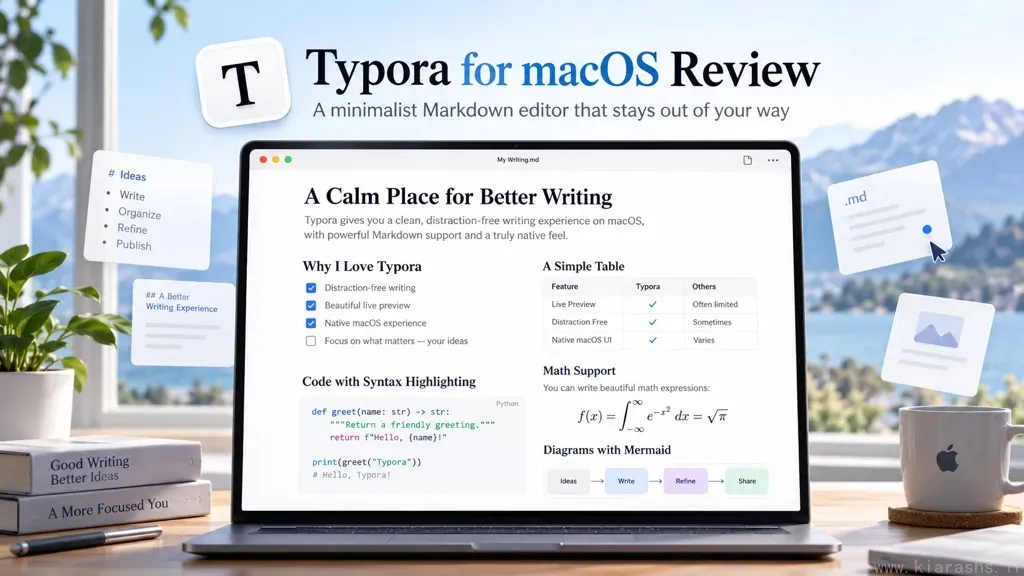
Table of Contents
If you spend a lot of time writing in Markdown on a Mac, you probably already know the usual trade-off: some editors are fast and beautiful but too limited, while others are powerful but cluttered with panels, toolbars, and formatting noise. Typora sits in a very interesting middle ground. It aims to give you the simplicity of a clean writing app without taking away the tools that make Markdown practical for serious work.
Judged by its workflow and feature set, Typora makes a compelling case for people who want to focus on writing first and formatting second.
First Impressions
Typora’s main pitch is simple, and it remains its strongest advantage: it removes the split between editing and previewing. Instead of showing raw Markdown in one pane and a rendered document in another, it uses a live preview style where the syntax gets out of your way while you write. Headings look like headings, lists look like lists, tables feel like tables, and images appear like images rather than file references.
On macOS, the design suits a minimalist desktop workflow: open a note and start writing without visual clutter.
The Writing Experience
This is where Typora shines.
The editor feels fluid and distraction-free. Instead of constantly thinking about syntax symbols, preview modes, or where a formatting command lives, you simply work with the document itself. Typora describes this as a “What You See Is What You Mean” experience, and that phrase is actually a fair summary. It is not a word processor in the traditional sense, but it often feels as immediate as one.
The app also supports focus-friendly touches such as Focus Mode and Typewriter Mode. On macOS, these are particularly useful when drafting long articles, academic notes, or documentation. Focus Mode reduces attention drift by emphasizing the current line, while Typewriter Mode keeps your active line centered on screen. Neither feature is revolutionary, but both are genuinely helpful in daily use.
The overall design prioritizes calm over complexity.
Features That Matter in Real Use
Typora is minimal, but it is not bare-bones.
It supports all the basics you would expect from a capable Markdown editor: headings, lists, checkboxes, tables, code fences, block quotes, footnotes, front matter, and inline styling. Beyond that, it also handles mathematics, code syntax highlighting, diagram support through Mermaid, flowcharts, and sequence diagrams. For technical writing, that breadth is a major strength.
A few practical features stand out:
- Outline panel: Great for navigating long documents.
- File tree and article list: Useful for managing notes and documentation folders.
- Import and export options: Exporting to PDF is especially valuable, and Typora also supports other formats such as DOCX, LaTeX, OpenOffice, EPUB, and MediaWiki.
- Word count and reading time: Small details, but useful for writers.
- Themes and CSS customization: Excellent for users who want control over appearance.
- Image handling: Drag-and-drop image insertion is easy, and relative path support is helpful for blog and documentation workflows.
Together, these features provide considerable depth without making the interface look crowded.
Where Typora Works Best
Typora is especially good for people whose work already fits naturally into Markdown.
That includes:
- bloggers and technical writers,
- students taking structured notes,
- researchers preparing draft content with equations,
- developers writing README files or documentation,
- anyone building content for static sites.
If your workflow depends on writing locally, organizing documents in folders, exporting clean files, and avoiding unnecessary interface complexity, Typora is a very strong fit.
It is also an appealing option for Mac users who want something more elegant than a developer-centric editor but less heavyweight than a full publishing or note-management suite.
Design and Performance on macOS
Typora feels at home on a Mac. The interface is clean, the document layout is pleasant, and the overall app experience is smooth. It does not overwhelm the screen with controls, and that makes it easy to stay immersed in the content.
The uncluttered interface also reduces perceived friction, although actual performance on very large documents will depend on hardware, document size, and embedded content. This review is a feature- and workflow-based assessment, not a benchmark test.
Weaknesses and Limitations
Typora is excellent, but it is not for everyone.
First, it is a paid app. The pricing is reasonable for what it offers, especially with support for up to three devices, but people who only want a free Markdown editor have plenty of alternatives. Typora offers a free trial, which is useful, but the purchase question will still matter for some users.
Second, Typora is intentionally focused. If you want a deeply integrated knowledge-management platform, database-style organization, team collaboration, or cloud-first workspace features, this is not really that kind of product. It is a writing tool, not an all-in-one productivity universe.
Third, while the minimalist design is a strength, some users may prefer more visible controls and a more traditional editor layout. Beginners who are completely unfamiliar with Markdown might need a short adjustment period, even though Typora does a good job of hiding syntax complexity.
In other words, Typora’s main weakness is mostly the flip side of its design philosophy: it is deliberately streamlined.
Value for Money
At $14.99 before tax for a license covering up to three devices and a 15-day free trial, according to Typora’s website, the pricing is attractive. In fact, one of the most impressive things about the app is that it does not feel like a budget compromise. The experience is refined enough that the price feels easy to justify if you write regularly.
For occasional users, that value equation may be less obvious. But for anyone who spends hours each week in Markdown, Typora can quickly earn its place. A better writing experience is not just about aesthetics; it can reduce friction every single day.
Final Verdict
Typora for macOS is one of the best Markdown editors for users who want a clean, elegant, and writing-centered experience. Its live preview model remains genuinely useful, not gimmicky. It supports serious writing features without becoming bloated, and it respects the user’s attention in a way many modern apps do not.
Its strength is restraint: rather than replacing a full knowledge-management suite, it offers a focused place to write.
If you are a Mac user looking for a Markdown editor that is simple yet capable, Typora is easy to recommend.
Some other features are:
- Beautiful live preview writing experience
- Clean and distraction-free interface
- Strong support for tables, code, math, and diagrams
- Excellent export options
- Theme support and CSS customization
- Fair one-time price
For writers, developers, students, and researchers on macOS, Typora is a thoughtfully designed tool that delivers exactly what many Markdown users want: less friction, more writing.