- Published on
FileBo for macOS Review: The Recent-Files Shortcut Finder Is Missing
6 min read
- Authors
- Name
- Kiarash Soleimanzadeh
- https://go.kiarashs.ir/twitter


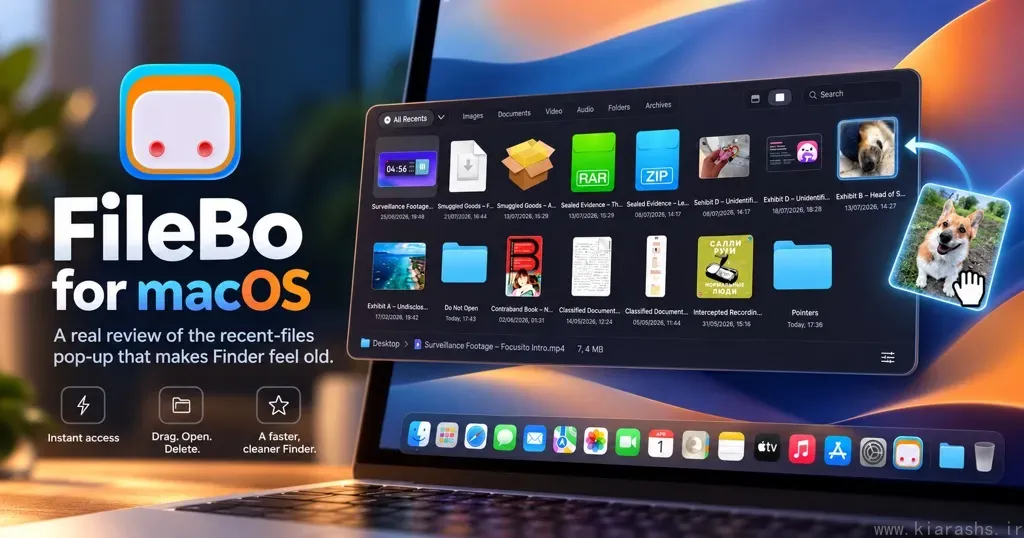
Table of Contents
- First impressions: one shortcut, less friction
- The features that make FileBo useful
- 1. A more complete picture of recent activity
- 2. Drag, preview, and organize without the Finder detour
- 3. Search that reaches beyond the shelf
- 4. Cloud folders and external drives
- Performance, privacy, and the little details
- What could be better?
- Pricing: a sensible one-time purchase
- Verdict: small idea, genuinely practical execution
You have just downloaded a PDF, exported an image, or taken a screenshot. You know the file exists, but getting it into an email or another app somehow requires opening Finder, navigating to a folder, and sorting through everything else. It is a recurring interruption.
FileBo by OrsoLabs tackles precisely that problem. Instead of replacing Finder, it puts a floating shelf of recent files one keyboard shortcut away, wherever you are on your Mac. The promise: less searching, more doing.
Review scope: This is an editorial assessment of FileBo's documented features, published release notes, and App Store feedback—not a claim of independent hands-on testing or measured performance benchmarks.
First impressions: one shortcut, less friction
FileBo's default shortcut, Shift–Command–F (⇧⌘F), opens its shelf above your current application, including full-screen apps. The window disappears when you click away, and you can also reach it from the menu bar or Dock. That saves frequent trips to Finder.
Imagine writing an email and needing to attach the invoice you downloaded five minutes ago. Instead of switching windows, you summon FileBo, locate the invoice near the top, and drag it into Mail. By default, dragging outward copies the file; holding Command moves it. That helps protect the original.
The interface follows the familiar macOS visual language, with light and dark appearances, file previews, and both list and icon views. It feels like a desktop extension, not a sprawling file manager.
The features that make FileBo useful
1. A more complete picture of recent activity
Finder's Recents view is useful, but it does not reliably answer a common question: What did I just download or create? FileBo brings together files you added, saved, exported, modified, and—in its September 2026 update—opened. Each item can indicate whether its date represents an addition, creation, modification, or opening.
Tabs help narrow the field without requiring a carefully phrased search. Alongside All Recents, FileBo offers areas such as Favorites, Images, Documents, Downloads, Screenshots, and Apps. You can jump between tabs using keyboard shortcuts, making it practical even when your hands never leave the keyboard.
2. Drag, preview, and organize without the Finder detour
FileBo goes beyond displaying a list. You can use Quick Look with the Space bar, rename a file with F2, open it in another application, copy its path, share it, or move it to the Bin. It also provides folder navigation and clickable breadcrumbs, so the shelf can handle a quick organizational task rather than forcing you into another window.
One particularly thoughtful detail is how FileBo treats bursts of new files. An extracted archive or photo import can be grouped instead of flooding the shelf with dozens of individual items. Favorites keep frequently needed files accessible after they fall outside the recent time window.
These conveniences benefit designers, students, and developers alike.
3. Search that reaches beyond the shelf
Typing initiates a Spotlight-powered search that prioritizes file names and can also find words inside indexed documents. Search is not confined to the currently visible recents: it can reach across your home folder, subject to macOS indexing and the folders FileBo is allowed to access.
The shelf answers What did I just make? Search helps when you recall a name or phrase but not a location. It is not a replacement for a specialized research or document-management tool, but it reduces the need to open Finder for straightforward retrieval.
4. Cloud folders and external drives
FileBo works with iCloud Drive and cloud services that appear as folders on your Mac, such as Dropbox, Google Drive, and OneDrive. Connected external drives also appear, with an option to eject them. This is especially convenient if your work is spread across local storage, synced folders, and removable media.
There is an important distinction, though: FileBo is not a cloud-search service. It works with what macOS can see and index. Files in inaccessible locations, or folders excluded from Spotlight, may not appear until you change the relevant settings.
Performance, privacy, and the little details
FileBo is a native macOS app that uses Spotlight rather than building a separate searchable database of your files. OrsoLabs says it works offline and does not upload file names, paths, or contents. Anonymous usage statistics are enabled by default, disclosed during setup, and can be disabled in Settings. Privacy-minded users should review that switch during onboarding.
The release history also shows attention to everyday usability. Version 1.2.0, dated September 27, 2026, improved shortcut responsiveness and made opened files part of All Recents. Earlier updates addressed cold-start speed, cloud-folder background activity, and interface polish. That indicates active development, not independently verified performance.
What could be better?
FileBo's greatest strength is also its boundary: it is designed around recent-file access, not complex file management. People who rely on advanced batch renaming, automation, multi-pane browsing, or deep project organization will still need Finder or another dedicated tool.
Its usefulness also depends on the folders you authorize and Spotlight's visibility. A file outside those locations will not magically appear. And while the floating interface removes friction in many workflows, users who rarely download, export, or move files may not use it often enough to justify buying it.
Finally, the free tier is limited after the trial. Browsing, searching, switching tabs, and revealing files in Finder remain available, but actions such as opening, dragging, moving, and organizing require the paid unlock. The product's most convenient workflow is therefore part of the purchase.
Pricing: a sensible one-time purchase
FileBo offers a 14-day, full-featured trial without requiring a payment card. After that, the advertised price is $12.99 as a one-time purchase, with no subscription. It requires macOS 15 Sequoia or later and supports both Apple silicon and Intel Macs. Check the official product page for the current price in your region.
For someone who moves files between applications throughout the day, that is a reasonable proposition. For occasional users, the remaining free browsing and search features may be enough.
Verdict: small idea, genuinely practical execution
FileBo does not make Finder obsolete, nor does it need to. Its value lies in removing an irritating step from a task almost every Mac user recognizes: retrieving the file that was just downloaded, edited, or saved. The shortcut-driven shelf, drag-and-drop behavior, file previews, and sensible organization features form a focused package rather than a grab bag of productivity tricks.
Recommended for: designers, writers, students, developers, and anyone whose working day involves a constant stream of downloads, screenshots, documents, and exports. The two-week trial should establish whether it deserves a menu-bar spot.