- Published on
Mole review: a $19 Mac cleaner with a free, open-source twin
11 min read
- Authors
- Name
- Kiarash Soleimanzadeh
- https://go.kiarashs.ir/twitter


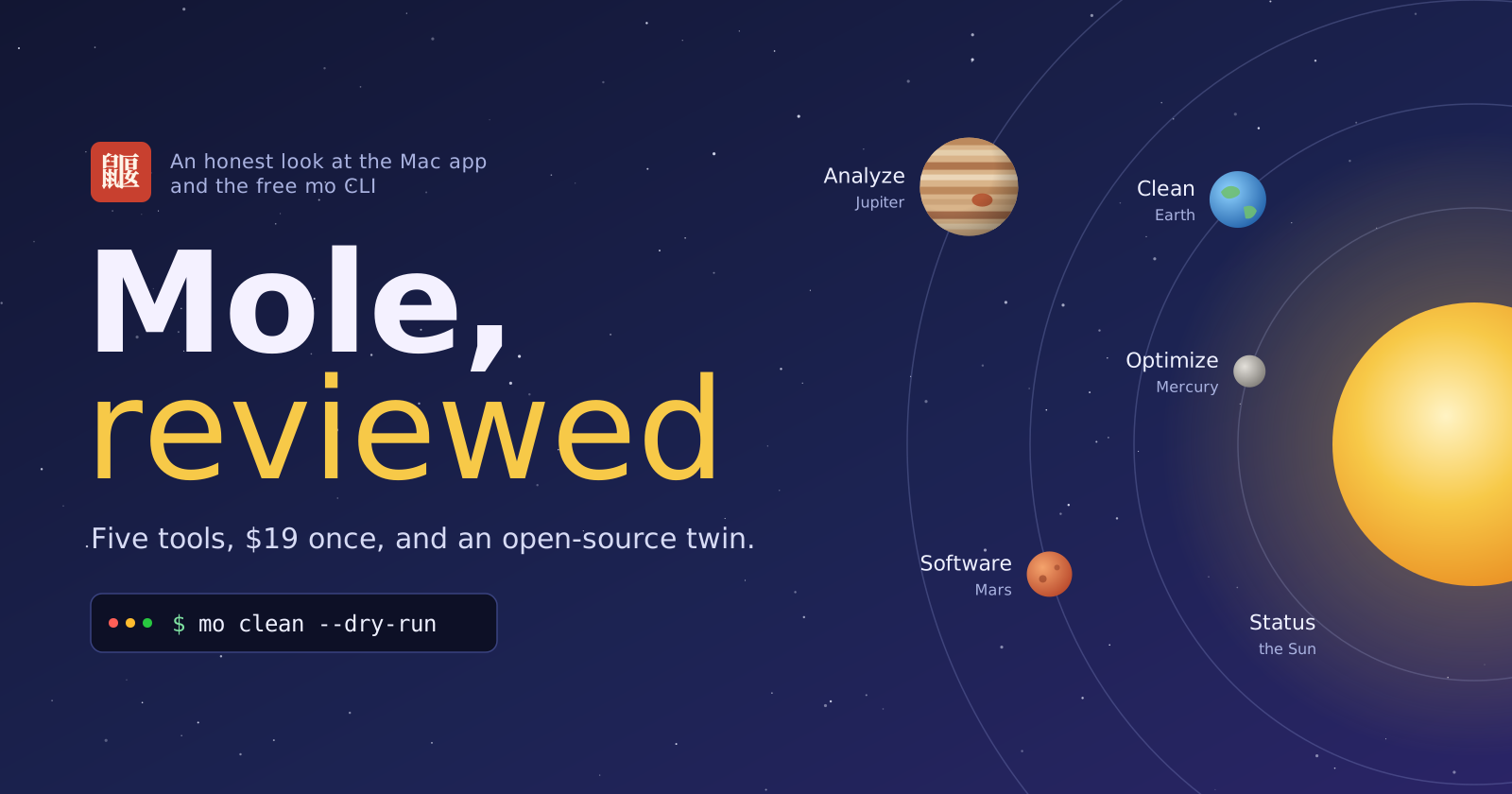
Table of Contents
Mole started life as a terminal command. You typed brew install mole, then mo clean, and a few minutes later your Mac had tens of gigabytes back. The GitHub repo has 66.1k stars and 2.3k forks as I write this, and the tool is still free under GPL-3.0.
In 2026 its author, Tw93 (the developer behind Pake and Kaku), shipped a paid native app with the same name. It costs $19 once, covers two Macs, includes lifetime updates, and needs macOS 14 or later.
So there are now two Moles. This review covers both, but mostly the app, because that is the one asking for your money.
Short version: the app is worth $19 if you want a disk map, a live system monitor and a careful cleaner in one window. If you are happy in Terminal, the free CLI already does most of the cleanup and a few things the app can't.
Two programs that share a name and a log file
The app is not a GUI wrapped around mo. It is a separate Swift program. The two share a whitelist (~/.config/mole/whitelist) and an operations log (~/Library/Logs/mole/operations.log), so a cache you protect in one is protected in the other, and deletions from either end up in the same record.
They are not equally aggressive, and Mole's own CLI vs app comparison says so plainly. The CLI deletes more because it assumes you read the list. The app deletes less because it assumes you want the list to be safe already. The clearest case is build artifacts: the CLI's mo purge will remove node_modules, Pods, venv and vendor, while the app drops anything that needs a network download to come back.
I like that the difference runs in one direction and is written down.
The app is split into five tabs, and each one gets a planet: Earth for Clean, Mars for Software, Mercury for Optimize, Jupiter for Analyze, the Sun for Status. That theme is either charming or a bit much, depending on who you ask. More on that later.
Clean
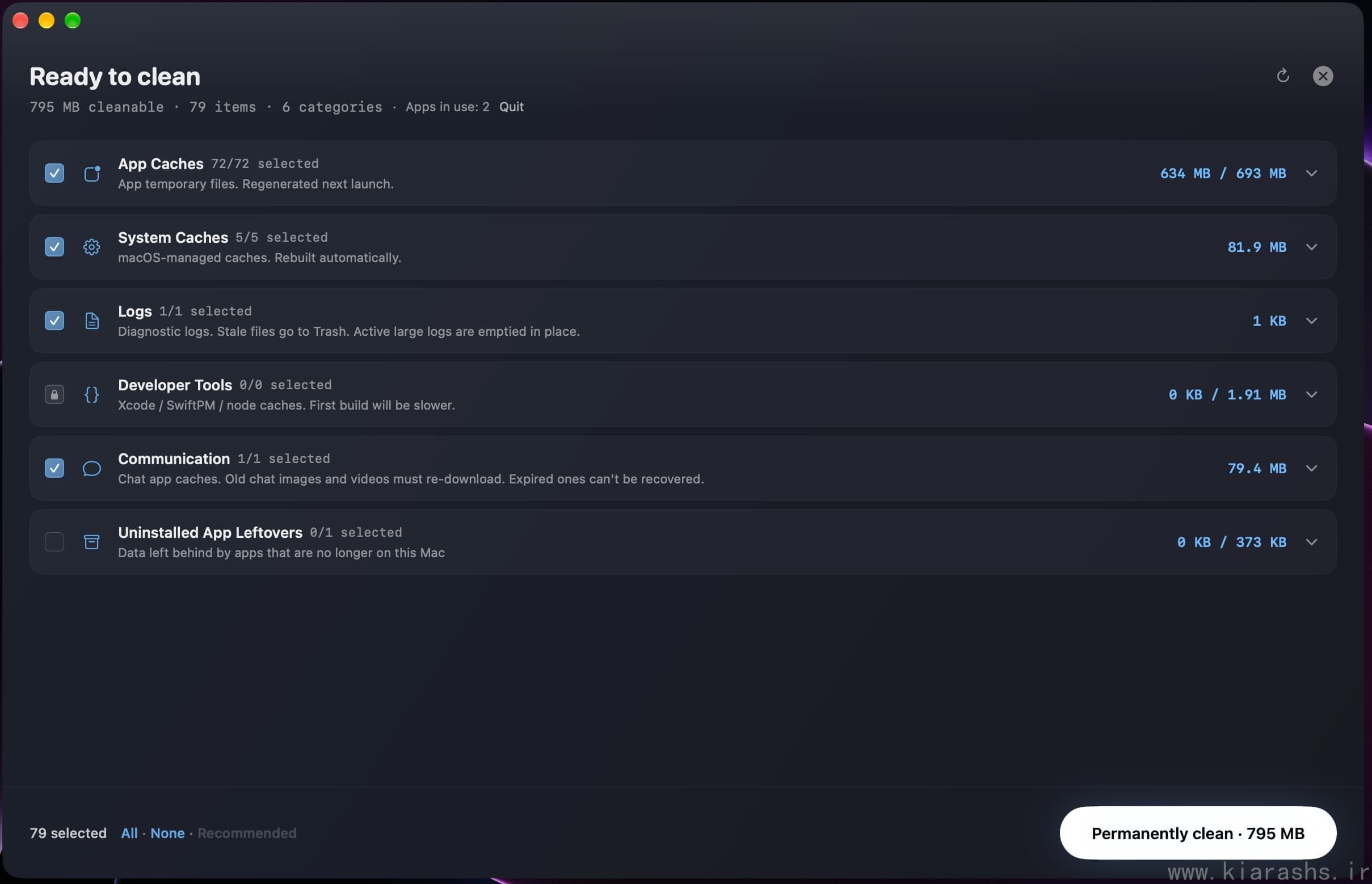
Clean scans app and system caches, logs, temp files, browser data, developer tools and cloud clients across ten categories. Nothing is removed until you review the list, and you can skip or protect any row.
The part I'd point to is how Mole sorts things. Each candidate lands in one of three groups: regenerable (HTTP caches, build output, most logs), expensive to rebuild (package downloads, device support files, local model weights), and irreplaceable (documents, mail, photos, project state). Only the first group is treated as routine cleanup.
That matters if you run coding agents. Mole's cleaner page says it surfaces target, dist, .next and DerivedData, but protects Ollama and Hugging Face model stores along with Claude, Codex and Grok session histories. A cleaner that wipes your agent's memory to free 5 GB would be a bad trade, and Mole seems to know that.
Caches owned by an open app are skipped. Paths are checked again at the moment of deletion, not just at scan time.
One default I'd change right away: cache removal is permanent out of the box. Settings has a Trash mode that makes everything recoverable. Use it for your first few runs.
Software: uninstall, updates, startup items
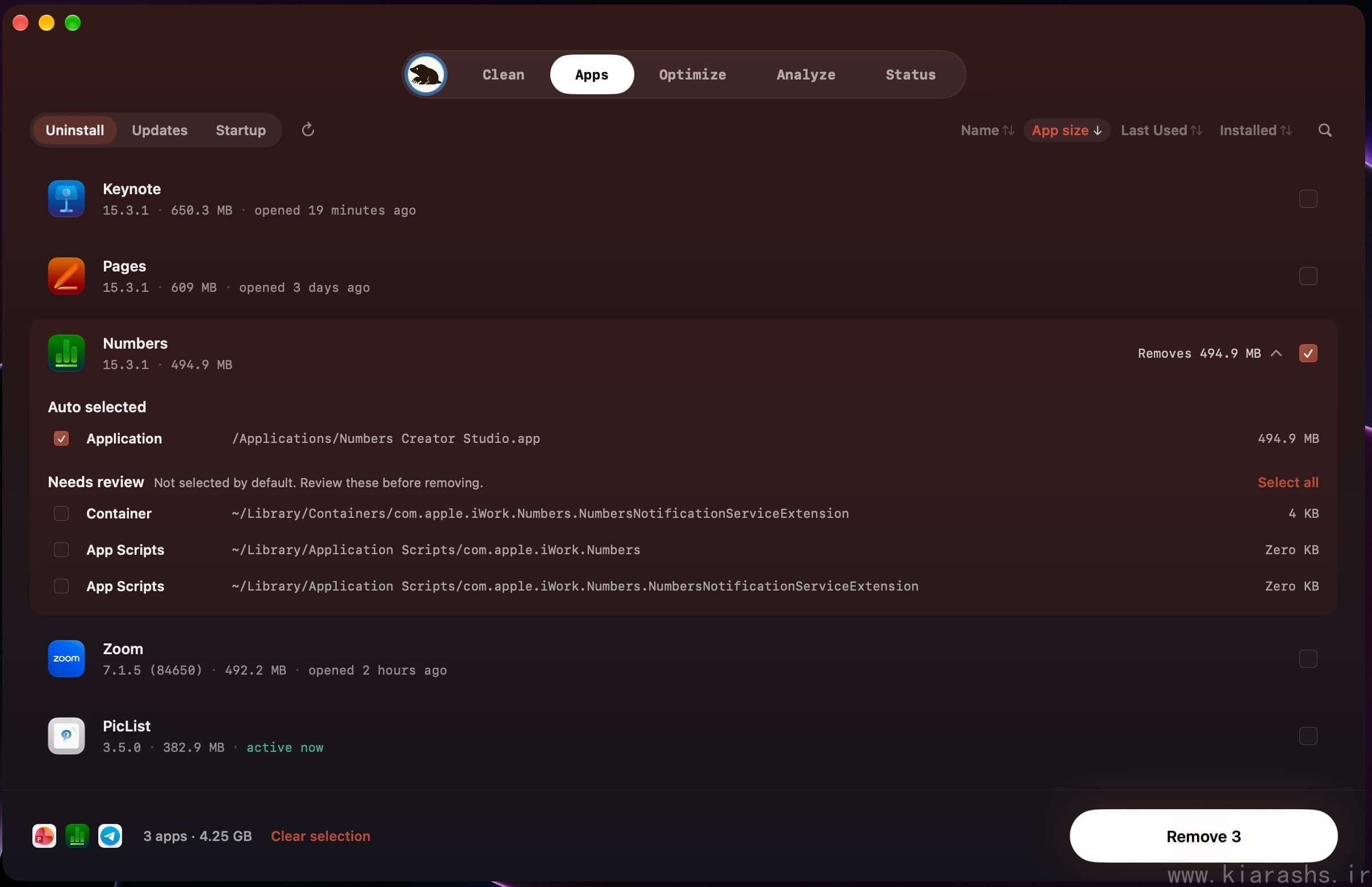
The uninstaller reads the app's bundle identity and checks more than fifteen Library locations: Application Support, Caches, Preferences, Containers, Group Containers, Launch Agents and so on. Strong matches get selected with the app. Weak or ambiguous matches stay visible but unchecked, which is the correct call when two apps from the same vendor share a folder.
Removals go to the Trash. Root-owned apps ask for an admin password once per session.
The same tab checks for app updates through Sparkle, the Mac App Store, Homebrew and Electron feeds, and it can toggle login items and Launch Agents when they have a stable identity. Apple-managed entries it can't control safely open the right System Settings pane instead. The update checker surprised a few users; Jeremy Ruiz posted that he only noticed it later and liked that it jumps to the App Store when needed.
Mole is upfront about a limit here. VPNs, antivirus tools, drivers and kernel or system extensions can keep running after the app bundle is gone, and Mole tells you to use the developer's own uninstaller for those.
Mole also publishes a list of 652 Mac apps it has tested one by one for what they leave behind, including Cursor, OrbStack, Ollama, Raycast and 1Password.
Optimize
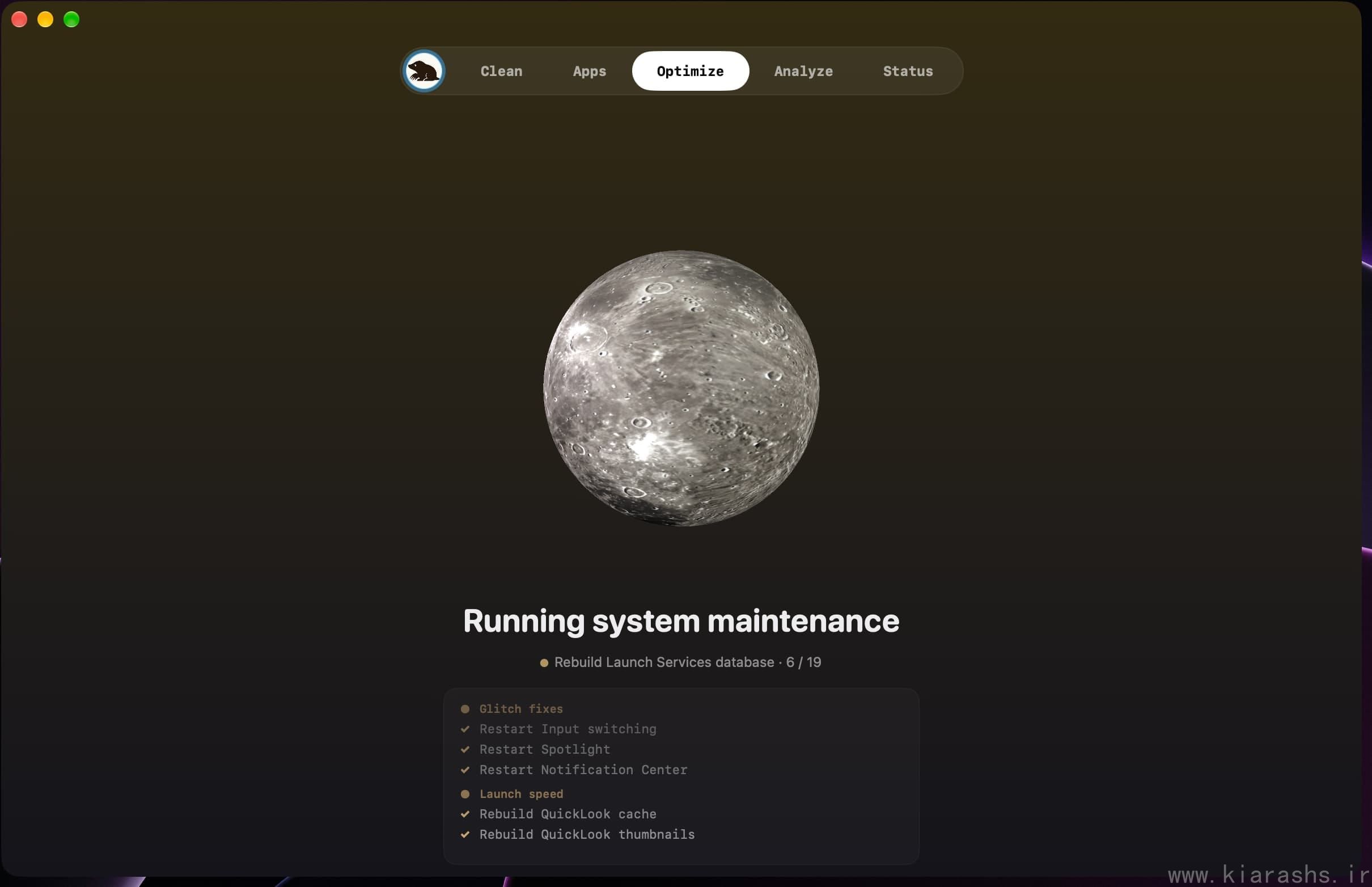
Most "optimize" buttons in Mac cleaners are theater. Mole's version is narrower and more honest about it. It starts with fixes for specific problems (input-method switching, Spotlight, Notification Center), then runs deeper maintenance: rebuilding Quick Look, clearing stale Launch Services records, vacuuming SQLite stores, repairing broken preferences.
The result screen lists what completed, what was skipped and what failed, with a reason for each skip. It won't touch tasks that could drop an active VPN, a Bluetooth keyboard or audio device, or an external display. Admin tasks share one authorization for the run instead of prompting you five times.
Mole's own help page tells you to run it when memory pressure stays high or apps open slowly, and to not make it a daily routine. I agree, and I rarely see a cleaner vendor say that.
Analyze
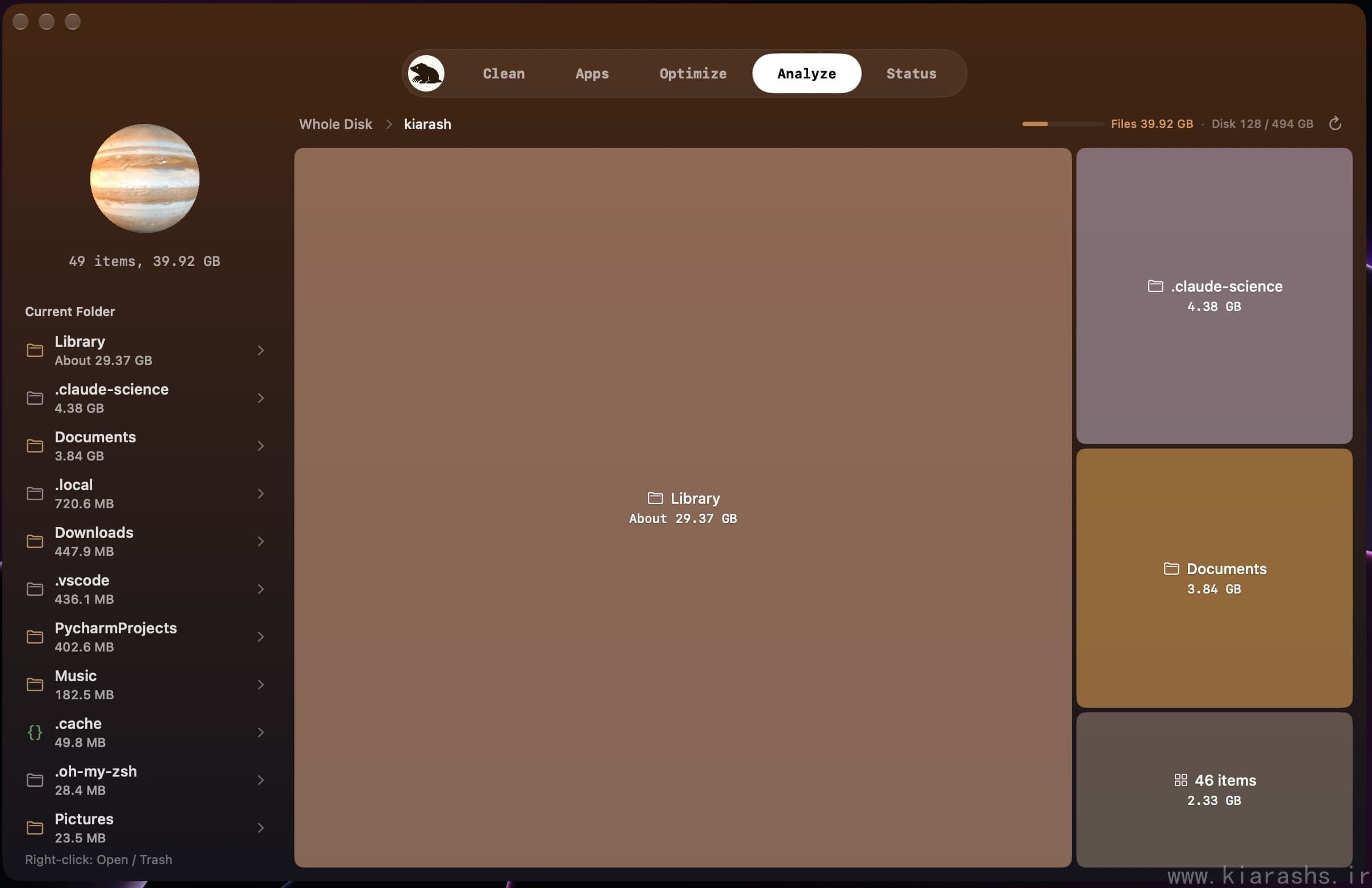
This is the DaisyDisk replacement. Pick a disk or folder and you get a treemap where block size tracks space used. Click into a block, jump back through the path bar, reveal in Finder, or rescan one folder.
System folders are view-only. Moving anything to Trash is a separate, confirmed action, and Analyze never preselects the biggest block.
Two details I appreciated. Folders Mole couldn't read stay on the map with a retry button, so an incomplete scan doesn't look like free space. And the docs explain that APFS clones, snapshots and purgeable storage mean a block's size is not a promise of bytes you'll get back. That explains most "I deleted 15 GB and gained 5" complaints before they happen.
The treemap is hidden from VoiceOver on purpose; a list of the largest items next to it carries the same data in a form a screen reader can walk through.
Status and the menu bar
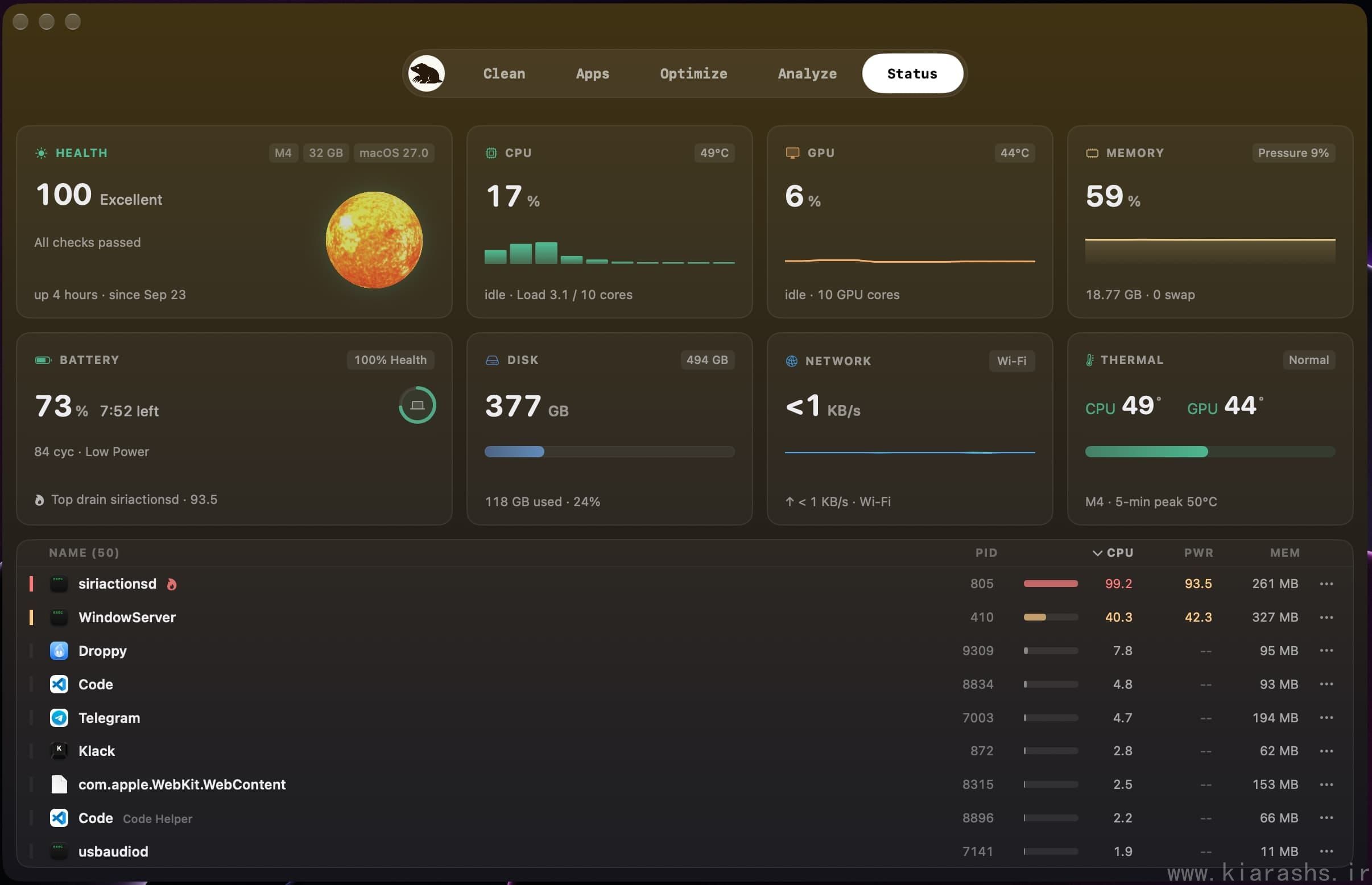
Status covers CPU, GPU, memory, battery, temperature, disk, network and fans on one screen, each with a 60-second trend line so you can tell a spike from sustained load. The process list refreshes every second and sorts by CPU, memory, power, name or PID. Click a row and you get a plain-language explanation of what that process is, which is more useful than it sounds the first time mds_stores eats a core.
The menu bar panel shows two live metrics or a small animated runner (Mole, RunCat, a rubber duck, a dinosaur and more). It also shows camera and microphone privacy alerts, Keep Screen On, a Clean Screen mode that locks input while you wipe the keyboard, and eject for removable drives. On supported Macs you get fan control with Auto, Cool and Max modes, plus Battery Care that holds charge around 75 to 80 percent.
That is a lot of iStat Menus and AlDente territory for $19. None of it is uploaded; Mole says metrics and process names stay on the Mac.
The free CLI
If you live in Terminal, start here. It costs nothing:
brew install mole

mo clean --dry-run     # preview what would be removed
mo clean               # deep cleanup
mo uninstall           # remove apps plus leftovers
mo optimize            # refresh caches and services
mo analyze             # disk explorer in the terminal
mo status              # live health dashboard
mo purge               # clean project build artifacts
mo installer           # find old DMG/PKG installers
The CLI has three things the app doesn't. mo purge sweeps build folders across your project directories, and it leaves anything touched in the last seven days unselected. mo installer finds forgotten DMG, PKG and ISO files in Downloads, Desktop, Homebrew caches, iCloud and Mail. mo touchid sets up Touch ID for sudo.
It is also scriptable. mo status --json returns a snapshot, mo status switches to JSON automatically when piped, and mo history --json dumps the cleanup log. Antonio Leiva wrote that he has a Codex automation running Mole weekly; that's only possible from the command line.
Always run --dry-run first. The CLI is the more aggressive of the two, and mo purge deletes permanently.
Things that could bother you
These come from public posts by paying users and from Mole's own docs.
The cleaner has been too eager for at least one person. Jahir Fiquitiva wrote that, right after buying, a cleanup reset Spotify settings and the system screen saver to defaults. That's the kind of thing Trash mode lets you undo, which is another reason to switch it on early.
Failures used to be opaque. Alan Calderon reported that Mole failed to remove a few files without showing logs or asking him to quit the app holding them. Current versions show a reason on each failed row and include a Doctor report you can copy, so this looks addressed, but it's worth knowing that locked files still get skipped rather than forced.
The CLI and app don't always agree. The docs say the app is the narrower of the two. David Lonjon found the opposite in practice: the app surfaced more under App Caches and Developer Tools than the CLI did on the same machine. Neither is wrong, since they are separate scanners, but don't expect identical totals.
The planets are divisive. Keyframe or Die said they don't suit the Mole brand and spin too fast. Other users love them. If motion bothers you, the animation stops under Reduce Motion.
Some practical limits: macOS 14 or later only. System extensions need their own uninstallers. Fan control and some battery features appear only on supported hardware. And if you buy with an iCloud or relay email address, the license email from Dodo Payments may never arrive; the help page recommends Gmail or Outlook.
Support
Mole's support email goes to Tw93 himself, and users keep bringing it up.
The help page is written in the first person. If your license email doesn't show up, you email [email protected] with the payment ID and, in his words, "I will resend the key." Refunds within 14 days are handled the same way, no questions asked, though he asks for a line about what didn't work.
Public reports back this up. Liu Jiayi (@liujiayi1111) posted that the developer was friendly, fixed reported bugs fast, and went back to polish small UI details that had been flagged. Another user, @rocavence, wrote that Tw93 talks to users personally and that reported problems were fixed in the next version. Mole's site counts 923 resolved GitHub issues, and the repo had two open when this was written.
The accessibility section shows where this leads. Mole's VoiceOver rules (announce the name before the size, never leave empty focus stops) exist, according to the help page, because a blind user wrote in about a screen that read wrong. Each rule now has a test that fails the build if it regresses.
For bugs, the in-app Doctor generates a read-only diagnostic report you can paste into an email. It's a small thing that saves a round of "what macOS version are you on?"
Price and who should buy it
$19, once. Two Macs. Lifetime updates. Each destructive tool works twice before you need a license, and scanning is always free, so you can see what Mole would do on your own machine before paying anything.
I'd buy the app if you want a disk treemap and a menu bar monitor, if you're setting up a Mac for someone who will never open Terminal, or if you're dropping a CleanMyMac subscription and want the review-first behavior without the upsell screens.
I'd skip it if you already use the CLI and don't care about a GUI. Plenty of people buy it anyway just to pay the developer, which says something about how the free version has treated them.
Either way, run mo clean --dry-run first. It deletes nothing, and it will tell you in about a minute whether your Mac has a storage problem worth fixing.